Introduction
Encountering a situation where your PC fan’s light is on but the blades are still can be perplexing. This issue, if left unresolved, may lead to overheating and potential damage to your computer’s internal components. Understanding the root of the problem and knowing how to address it is critical for maintaining your device’s health. With this guide, you will gain insight into why your PC fan behaves this way and learn the necessary steps to diagnose and fix the issue.
Understanding the Issue
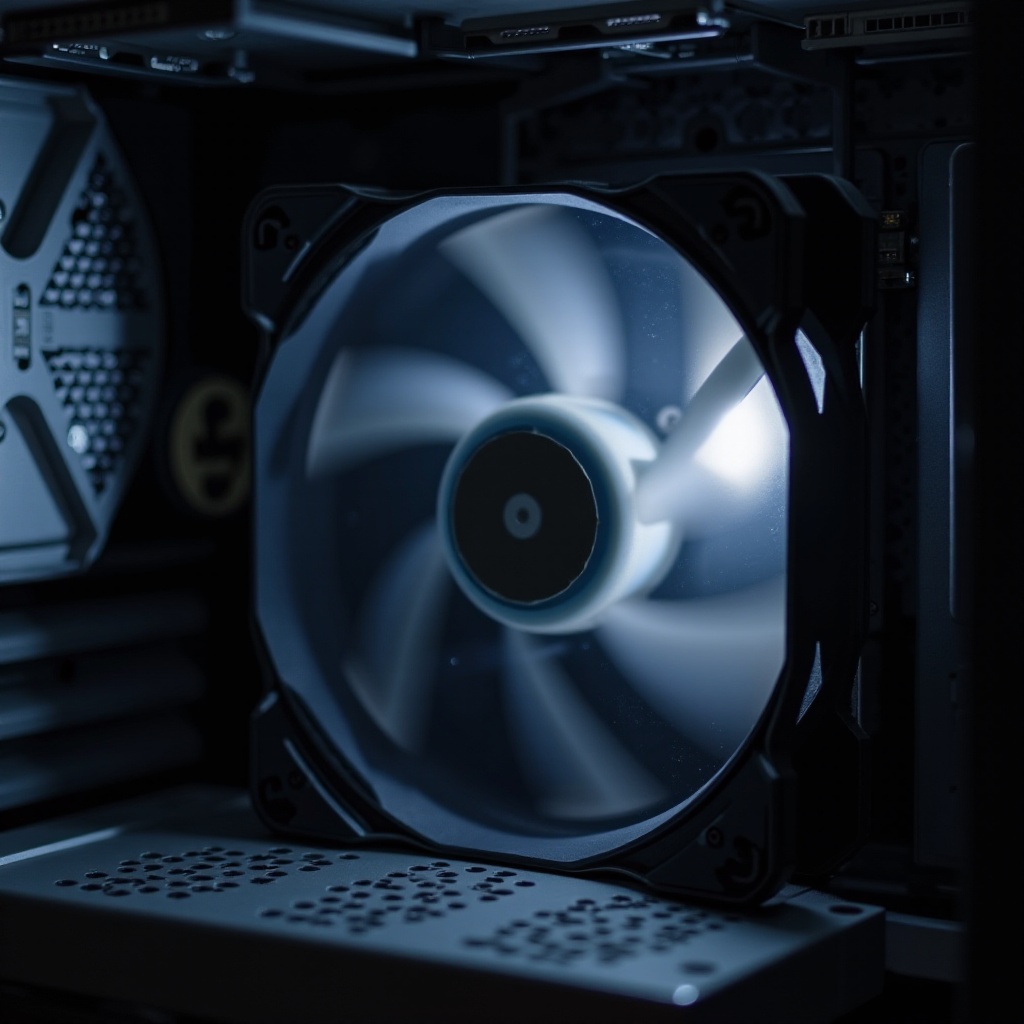
PC fans are essential for ventilating components like the CPU and GPU, safeguarding them from overheating during use. The phenomenon where the fan light is operational yet the fan doesn’t spin signifies a problem between electrical connectivity and mechanical functionality. This discrepancy can stem from several sources, such as power delivery discrepancies or hardware faultiness. Recognizing these factors is crucial in pinpointing the problem. Let’s explore how to narrow down the causes.
Common Causes of a Non-Spinning PC Fan
Despite the light being on, several potential issues might inhibit the spinning of a PC fan. Understanding these common causes can assist in accurate troubleshooting.
Power Supply Problems
A common culprit is inadequate power reaching the fan motor, preventing it from spinning despite sufficient light power. This could arise from a weak power supply unit or issues with power distribution.
Connection and Wiring Issues
Loose or improperly connected cables can interrupt the flow of power to the fan motor. Even though it may appear secure externally, a loose connection internally might prevent the blades from turning while keeping the light on.
Mechanical Fan Failure
Mechanical issues can also be the root cause. Dust buildup, damaged blades, or a stuck motor can impede movement. Over time, wear and tear can incapacitate the fan, leaving the indicator light on because power is still received.
Step-by-Step Troubleshooting Process
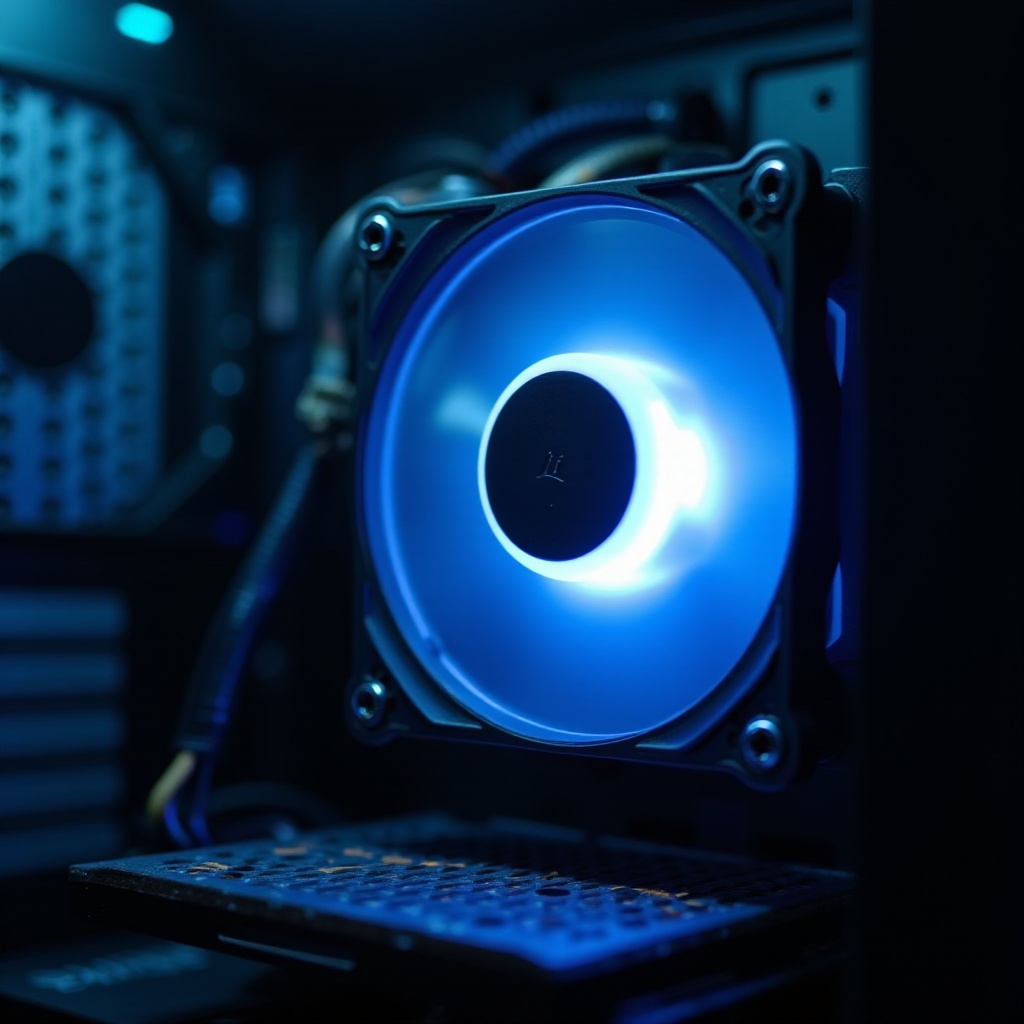
A systematic approach can help identify the underlying cause of your fan not spinning.
Preliminary Visual Inspections
- Carefully open your PC case to examine the fan and adjacent components for dust accumulation.
- Inspect the fan blades for any physical damage or obstructions.
- Verify that the fan cables are properly connected to the power supply or motherboard.
Checking for Power Supply Adequacy
- Ensure all power supply cables are appropriately secured.
- Test an alternative fan to verify if the power supply delivers adequate voltage.
- Use a multimeter to measure the voltage output from the power supply to the fan connections.
Exploring BIOS and Software Settings
- Access BIOS to review hardware settings and confirm the fan is neither disabled nor set to low operation.
- Update or reinstall fan control software to correct any lingering glitches.
- Adjust fan profiles to ensure configurations are not limiting fan performance.
Effective Solutions to Fix the Problem
After identifying the potential causes, you can proceed with targeted solutions to rectify the problem.
Cleaning and Maintenance
- Use compressed air to clear any dust obstructing the fan.
- If heavily dust-laden, remove the fan to thoroughly clean the blades and housing.
Repairing or Replacing Components
- Tighten any loose cables and replace damaged wires crucial for power transmission.
- If the fan has a mechanical defect that cleaning doesn’t fix, consider replacing it.
Updating BIOS or Fan Controller Software
- Ensure your BIOS is updated to leverage fixes for fan issues.
- Update or reinstall third-party fan control applications to avoid software bugs interfering with fan function.
Preventive Measures for Future Issues
Consistently maintaining your PC helps keep its components in optimal condition. Regularly cleaning the unit, especially the fans, and checking wire connections are crucial practices. Additionally, keeping your software updated minimizes compatibility issues and future problems.
When to Seek Professional Help
If, after applying these steps, your fan still doesn’t spin, it’s advisable to consult a professional technician. They can identify complex hardware problems or serious electrical issues that standard troubleshooting might not resolve.
Conclusion
A PC fan that illuminates yet remains stationary is a prevalent, but fixable, issue. By understanding its potential causes, following a structured troubleshooting methodology, and making the necessary adjustments or repairs, you can protect your computer from overheating and maintain its efficiency.
Frequently Asked Questions
Why is my PC fan not spinning even though the light is on?
This often happens due to power supply issues, loose cables, or mechanical failure preventing the blades from spinning.
Can I leave my PC on if the fan is not spinning?
No, operating a PC with a non-spinning fan risks overheating and can cause significant damage to internal components.
How often should I clean my PC fan to prevent these issues?
Regularly clean your PC every three to six months, depending on usage intensity and environmental dust levels, to ensure optimal performance.