Introduction
Facing issues with your Roku TV can be daunting, especially when you’re not sure what’s wrong. From display errors to connectivity hiccups, identifying the problem is key to restoring normal function quickly. Here, we will walk through common reasons for Roku TV malfunctions and provide practical troubleshooting strategies to help you solve these problems efficiently.
Understanding Your Roku TV System
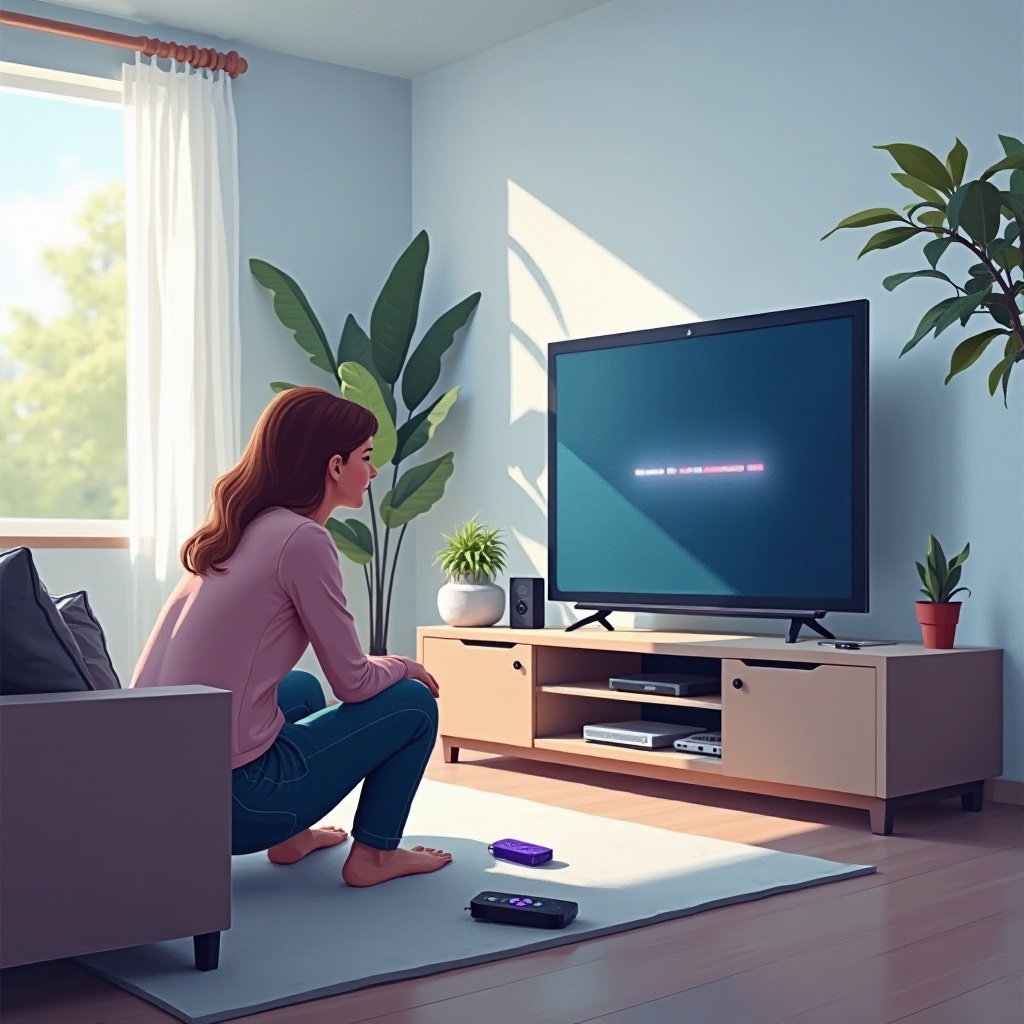
Before we dig into troubleshooting, it’s beneficial to have a basic grasp of how your Roku TV operates. This will enable you to apply the right fixes to specific problems. Your Roku TV consists of a combination of hardware and software that work together to stream content seamlessly. Core components include the Roku interface, remote control, and your internet connection. By determining which part isn’t working, you can more swiftly address the issue.
Initial Troubleshooting Steps
Let’s start with some straightforward checks that could resolve your Roku TV issues with ease.
-
Power and Cable Checks: Ensure your Roku TV is connected to a functioning power outlet. Inspect all cables, including power and HDMI cables, for any visible damage. Secure connections can solve many startup challenges.
-
Restarting Your Roku TV: A simple restart can often rectify operational malfunctions. Unplug your Roku TV from the power source, wait 30 seconds, and then plug it back in. This power cycle can clear temporary glitches.
-
Verifying HDMI and Other Connections: Confirm that your HDMI cable is firmly attached to both your TV and the streaming device. Also, make sure you’ve selected the correct HDMI input on your TV.
If these initial checks do not resolve the issues, we can delve into more specific troubleshooting methods related to the network.
Resolving Network and Connectivity Issues
A stable internet connection is essential for streaming on your Roku TV. If you’re facing connectivity issues, the following steps might help.
-
Checking Wi-Fi Settings: Navigate to the Roku TV settings to ensure the Wi-Fi feature is on and connected to your home network. If not, reconnect by entering your network’s password.
-
Ethernet Connection Troubles: If using a wired connection, check that the Ethernet cable is correctly plugged into both the router and the TV, and confirm it’s working properly.
-
Resetting Network Configurations: If problems continue, reset the network settings on your Roku TV. Head to network settings, select ‘reset’, and then reconnect to your Wi-Fi.
With a stable internet setup, you can rule out one of the primary sources of Roku TV problems and move on to addressing software concerns.
Software and Firmware Solutions
Your TV’s software needs to be updated for optimal performance. If software issues are suspected, these solutions may help.
-
Updating Software and Firmware: Go to the Roku TV settings and check for system updates. Ensuring the latest version of Roku OS is installed can avert many compatibility issues.
-
Dealing with Software Bugs: If you experience performance glitches or slowdowns, consider clearing the cache or reinstalling buggy apps. For instance, uninstall and reinstall streaming apps like Hulu to refresh data and functionality.
-
Performing a Factory Reset: As a last resort, a factory reset can restore original settings, potentially solving persistent software problems. Be sure to back up settings and account details before proceeding.
A maintained software environment not only keeps your Roku TV running smoothly but also reduces the likelihood of encountering further issues.
Troubleshooting Remote Control Problems
Sometimes, the cause of Roku TV malfunction is the remote control. Addressing remote issues can often be straightforward.
-
Replacing Batteries: Low or dead batteries are frequent reasons remotes stop working. Replace them with new ones to see if the issue resolves.
-
Re-pairing the Remote Control: If the remote is unresponsive, attempt re-pairing it with the TV. Press the pairing button inside the battery compartment and follow on-screen prompts.
-
Using the Roku Mobile App as a Remote Alternative: Download the Roku app on your smartphone for an alternative remote control. This serves as a handy backup in case your physical remote fails.
By ensuring your remote is functioning, you can better control and navigate your Roku TV, enabling easier interface access and problem-solving.
Addressing Display and Sound Issues
If your Roku TV has issues with output such as display or sound, try these tips.
-
Screen Calibration Tips: Adjust your TV’s picture settings for correct brightness, contrast, and resolution. Proper calibration can solve many visual problems.
-
Audio Troubleshooting Steps: Issues like no sound or distorted audio can often be fixed by checking the audio settings. Confirm the TV’s internal speakers are selected, and tweak volume settings.
Optimizing your display and sound ensures a better viewing experience and can indicate whether the problem might be hardware-related.
When to Seek Professional Help
If your Roku TV remains nonfunctional after attempting all these troubleshooting steps or if issues persist, it might be time to consult a professional technician. Additionally, check if your device is still under warranty, as that might cover repair or replacement costs.
Conclusion
Knowing why your Roku TV won’t work is crucial to efficiently resolving the matter. By systematically approaching these issues and following the outlined steps, you can often restore your device to optimal performance without needing professional help. Keep enjoying your streaming experience without letting minor glitches disrupt your viewing pleasure.
Frequently Asked Questions
Why is my Roku TV not turning on?
Check the power cable and outlet. Try using a different power cord or socket to ensure it’s not a power supply issue.
How can I check if my Roku is connected to the internet?
Go to Settings > Network > About on your Roku TV to see the connection status, IP address, and signal strength.
What should I do if the Roku remote is still not responding?
Ensure you’ve tried new batteries and re-paired the remote. If it’s still non-responsive, consider replacing it or use the Roku mobile app as an alternative.