Introduction
Connecting your iPhone to a monitor provides a broader, enhanced view that can significantly uplift your user experience. Whether you’re showcasing a presentation, watching a movie, or working on projects, this connection transforms your phone into a versatile powerhouse. Follow this guide to establish a connection seamlessly using both wired and wireless methods.
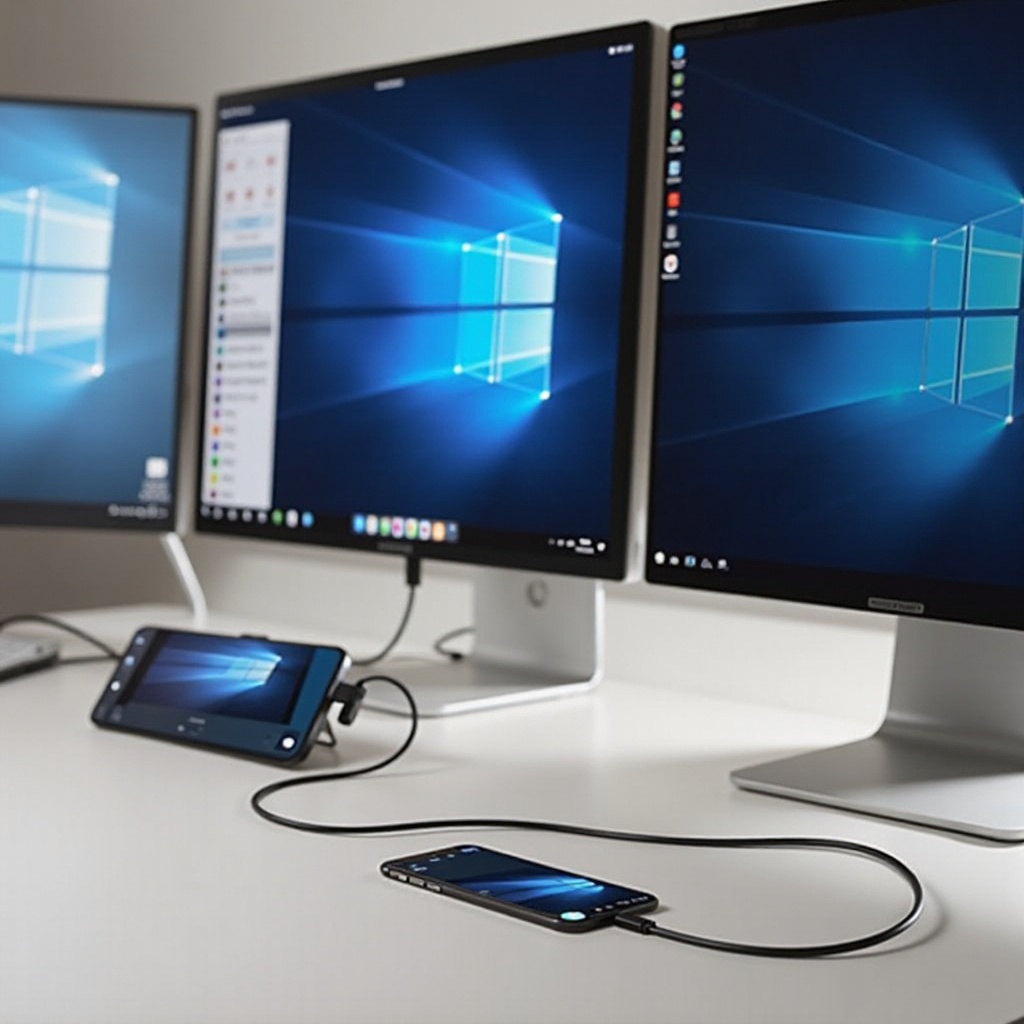
Understanding the Basics
Before diving into the actual connection process, it’s vital to understand the compatibility between your devices. Not all iPhones and monitors pair up perfectly, so identifying compatible models is crucial to avoid frustration.
– Compatible iPhone Models and Monitors: iPhone models from the iPhone 8 onwards generally support output to external displays. Monitors with HDMI inputs are the most user-friendly. Confirm compatibility by checking your device’s specifications.
– Benefits of Connecting iPhone to a Monitor: The benefits range from larger displays for movies to easy access to apps and files on a big screen. It facilitates a range of activities, from business tasks to leisure, offering increased comfort and productivity.
Required Equipment for Connection
Having the right gear is essential for a smooth connection experience. Ensure your setup is seamless by preparing the necessary cables and adapters ahead of time.
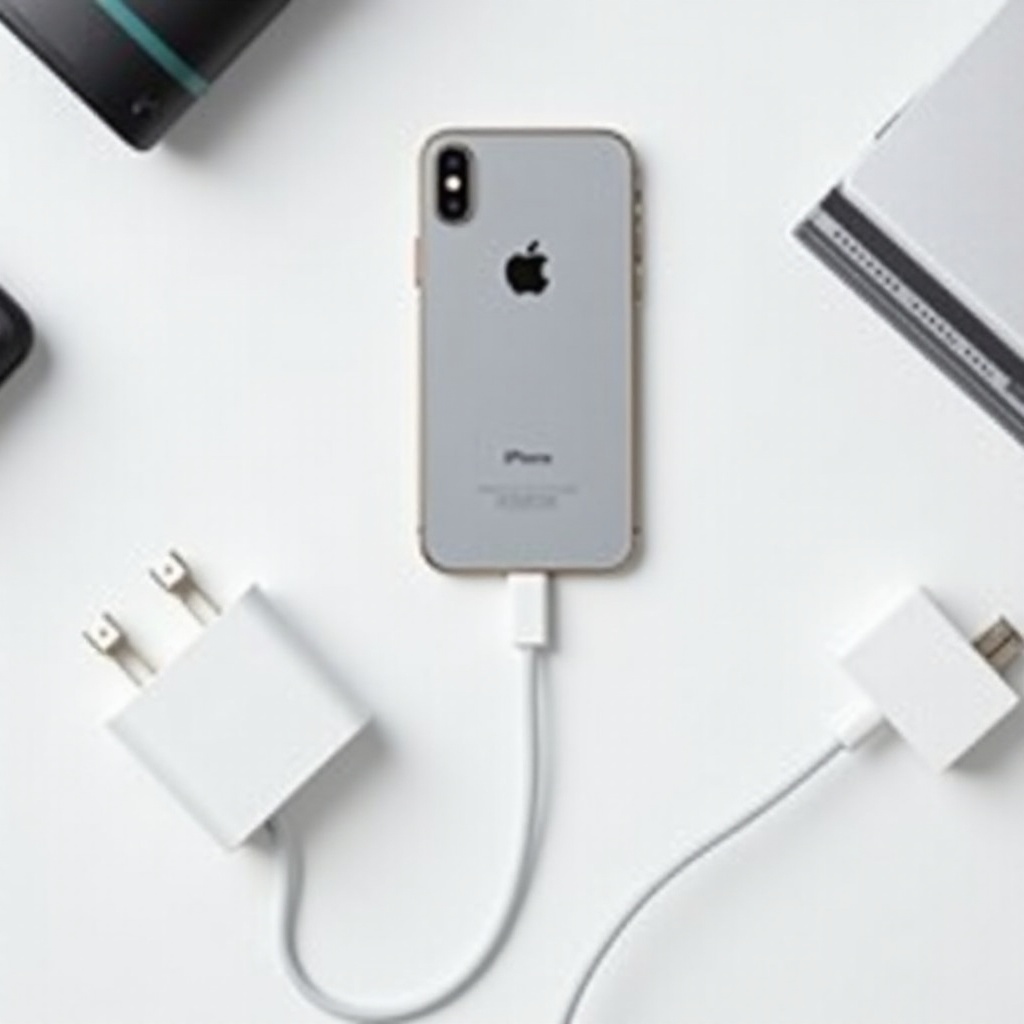
– Essential Cables and Adapters: For wired connections, a Lightning to HDMI adapter will serve you best. An HDMI cable will also be required to connect the adapter to your monitor.
– Alternative Wireless Options: Tech enthusiasts can opt for AirPlay for a cable-free environment, requiring compatible receivers like Apple TV. This offers flexibility and keeps your workspace tidy.
Wired Connection Guide
For a reliable connection, many find wired methods to be the most direct. Here’s how to connect your devices using cables:
1. Get the Right Adapter: Determine whether your monitor needs HDMI or VGA connections and purchase a corresponding Lightning adapter.
2. Plug in the Adapter: Connect the adapter to your iPhone’s Lightning port.
3. Connect the HDMI Cable: Attach one end of the HDMI cable to the adapter and the other to your monitor.
4. Select the Correct Input: Use the monitor’s settings to choose the right HDMI input, ensuring your display is projected.
If issues arise, double-check all your connections are secure and your monitor is set to the correct input.
Wireless Connection Methods
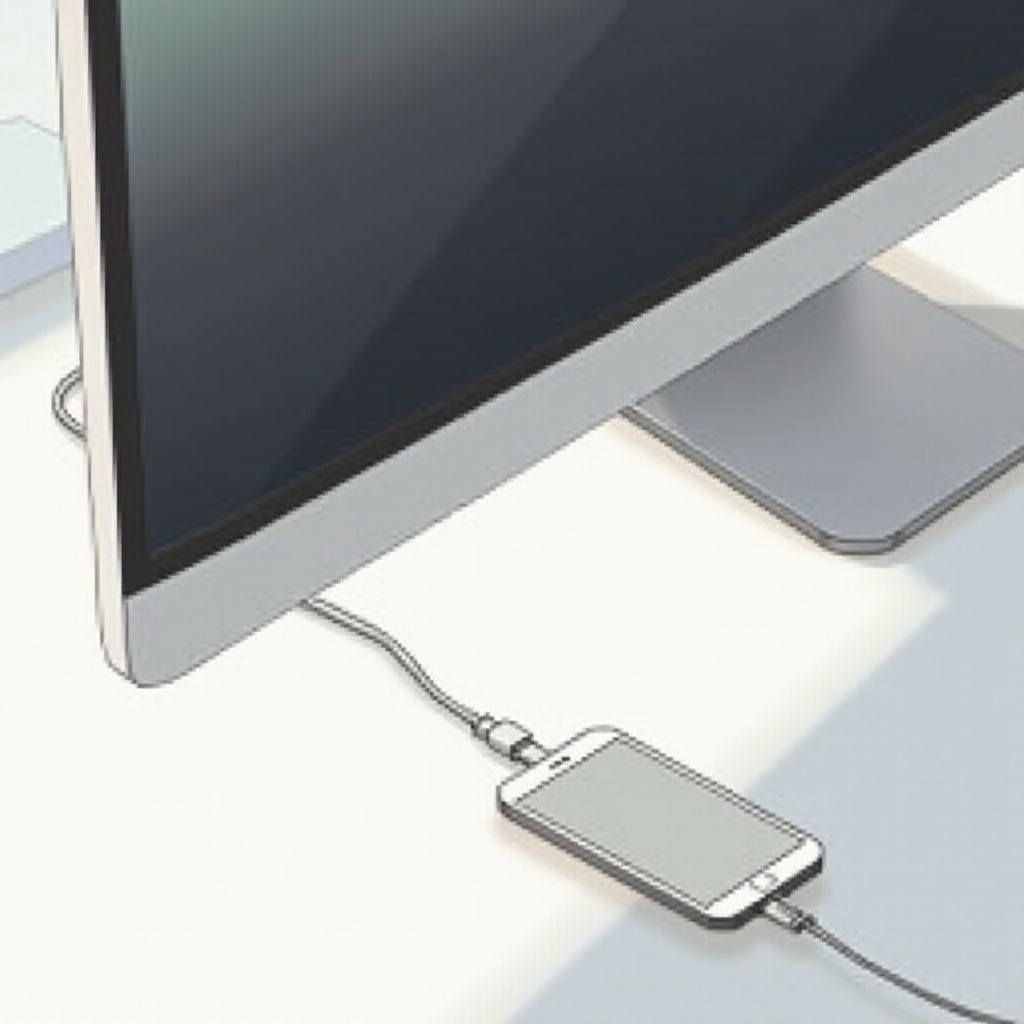
For those favoring modern, wireless solutions, AirPlay offers an ideal path. Follow these steps for a smooth wireless connection:
– How to Use AirPlay with Apple TV: Ensure both devices share the same Wi-Fi network. Open the Control Center on your iPhone, tap ‘Screen Mirroring’, and select Apple TV from the list.
– Exploring Third-Party Wireless Solutions: Without Apple TV, options like Chromecast can suffice. Typically, you’ll need to download the relevant app and adhere to the onscreen instructions for connection.
Enhancing the Display Experience
Once your iPhone is connected to the monitor, fine-tuning your display settings can significantly enhance your viewing pleasure.
– Optimizing Display Settings for Best Quality: Adjusting resolution on your monitor will yield a sharper image. Keep your iPhone software up-to-date for optimal performance.
– Recommended Accessories for Enhanced Productivity: Consider a Bluetooth keyboard and mouse for better navigation. Such additions can turn your iPhone into a mini workstation, great for multitasking and prolonged use.
Practical Applications of iPhone-Monitor Connection
The practical uses of an iPhone-monitor connection are diverse, making it a valuable ability whether at work or for leisure.
– Using for Presentations and Demos: Enhance professional performance by using monitors for clear, dynamic presentations.
– Extending Workspace for Multitasking: Create a productive environment by expanding your digital workspace, perfect for juggling multiple tasks simultaneously.
Conclusion
Connecting your iPhone to a monitor enhances both your personal and professional digital endeavors. Whether you prefer wired security or wireless flexibility, a more extensive display can transform your experience. With careful consideration of compatibility and the right equipment, your iPhone can effortlessly transition into a broader tool for work and play if done correctly.
Frequently Asked Questions
Can all iPhone models connect to a monitor?
Most recent iPhone models support this feature. Verify your specific model and monitor compatibility.
What are the best wireless options for connecting an iPhone to a monitor?
AirPlay with Apple TV is a reliable solution, while third-party devices like Chromecast also offer good alternatives.
How do I fix display issues after connecting my iPhone to a monitor?
Ensure connections are secure, the correct input is selected, and both devices are updated.